

Novel to Anime: How to Turn a Story Chapter into an AI Anime Drama
An AI anime drama is a novel or story turned into a short animated video, usually somewhere between thirty seconds and a few minutes, made for Reels, Shorts and TikTok. It used to take an illustrator, voice actors and an editor; now most of the steps can be done with AI in one workspace.
This guide walks through the whole process in ReelForge’s AI Anime Drama studio, from the original text to the finished video, with the actual point cost of every step.
What you need before you start
- A story or a chapter: paste the original text, up to 20,000 characters at a time. A short synopsis works too.
- An aspect ratio: vertical 9:16 for short-video platforms, landscape 16:9 for YouTube.
- Points: new accounts get 88 points, and the first visit to AI Anime Drama on the free plan adds 150 trial points — enough for one animated shot, one voice line and one quick lip-sync preview.
Step 1: Turn the text into a script
Paste the chapter into the studio and the AI lays out the characters (looks and personality), the scenes, and every line of dialogue with its action beats. The script is fully editable: cut subplots, rewrite lines, fill in character details.
The cost depends on the length of the source: 10 points up to 3,000 characters, 15 points up to 10,000 and 20 points up to 20,000. For a short story you can also have the AI split it straight into characters and shots for 10 points.
Step 2: Turn the script into shots
Once the script looks right, convert it to shots. Each line becomes a shot with a scene description, the speaking character and the line itself. It costs 10 points for up to 20 lines, 15 for up to 40 and 20 for up to 60, with a maximum of 60 lines per run.
Step 3: Lock in how each character looks
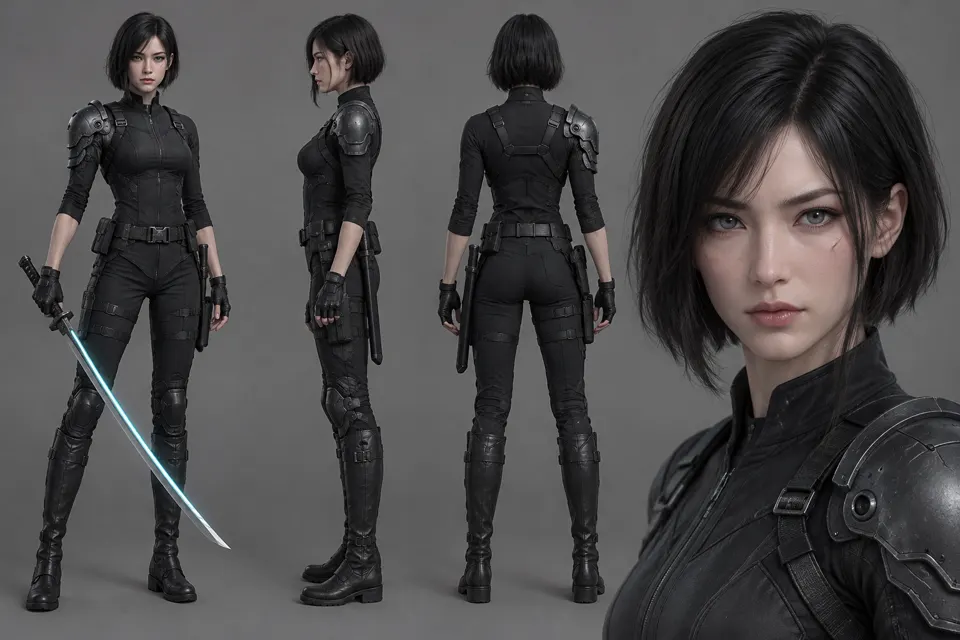
Generate one reference image per character first (8 points each). Every shot image is then generated from that reference, so the same character looks the same from shot to shot — the part AI dramas most often get wrong. Shot images also cost 8 points each, and you can add up to three extra references for locations or props.
Step 4: Animate each shot
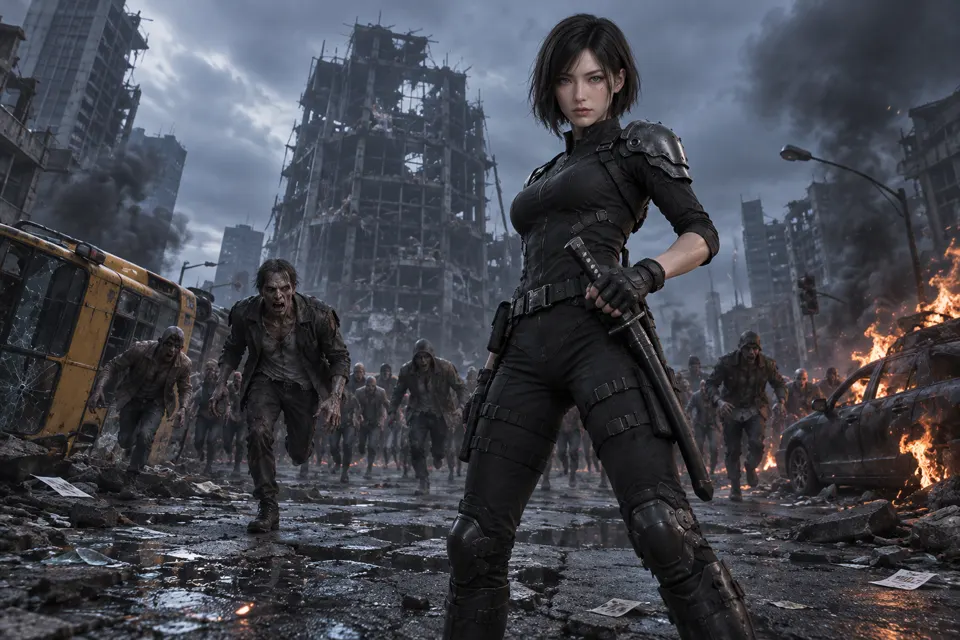
With the shot images approved, animate them one by one. There are three models: MiniMax H3 Max Turbo (5 seconds for 40 points at 480p, 50 at 720p, 110 at 1080p), Seedance 2.0 Mini (5 seconds for 60 points at 480p, 130 at 720p) and, on paid plans, Seedance 2.5 (5 seconds for 100 points at 480p, 220 at 720p, with any length from 4 to 10 seconds). All three also generate native sound effects such as sword hits, impacts and ambience.
To make two shots flow into each other, pick any frame of the previous clip as the next shot’s first frame, or set an end frame for the shot.
Step 5: Voice and lip sync
Every line can be voiced in place. Free Edge voices cost 3 points per clip; for emotion and natural delivery there are premium voices from MiniMax, Gemini, Seed and ElevenLabs at 5 points per 250 characters. ElevenLabs also accepts performance tags in the line, such as laughter or a sigh. Subtitles are generated automatically and can be edited.
Shots where a character speaks to camera can be lip-synced: VEED is fast (13 points per second at 480p, 25 at 720p) and Kling is more refined (19 points per second), both billed by the length of the audio.
Step 6: Sound effects, music and export
For fuller sound, AI sound effects re-score a clip to match the picture (about 1 point per 6 seconds, minimum 2), and AI music generates a soundtrack for the whole video (100 points per minute, up to 2 minutes).
The final export costs 3 points. Pick a transition into each shot (cut, fade, push-in or optical-flow morph), add an end card if you like, and the finished video appears in My Works. Exports on the free plan carry a watermark; paid plans do not.
A real example: “Doomsday Valkyrie: Blade of the End”
This 25-second action short was made with exactly this workflow: two characters and seven shots (including one brand card), with the fight scenes animated by Seedance 2.5 at 720p. The story, character references, and every shot’s prompt and clip are public on the making-of page, so you can compare each step with the result.
More work made in AI Anime Drama: Otti × Milo: The Office Trash Can War, Ascension and Good Morning, Little Rascal.
Tips for better AI anime dramas
- Describe characters precisely — height, hair, outfit colours and distinctive marks such as a scar — so the reference stays stable.
- Give each shot one action. Shots with too much going on tend to fall apart; split them in two and join them.
- Test motion at 480p first and redo it at 720p or 1080p once you are happy. It saves points.
- Keep lines short for short-form video — one idea per line reads and sounds better.
Frequently asked questions
- How many points does an episode cost?
- It varies a lot with the number of shots and the model. For 8 shots of 5 seconds each with H3 Max Turbo at 720p: script 10, shots 10, two character images plus eight shot images 80, animation 400, Edge voices 24 and export 3 — about 530 points in total.
- Can I adapt someone else’s novel?
- Only if you hold the adaptation rights. Otherwise use your own story or a work in the public domain, and avoid recreating copyrighted characters.
- What if a character looks different from shot to shot?
- Generate the character reference first, then the shot images. Regenerate or edit any shot image that drifts before animating it — the animation starts from the shot image, so a correct image keeps the clip on model.
- Can I try it for free?
- Yes. New accounts get 88 points, and the free plan adds 150 trial points on the first visit to AI Anime Drama. The free plan goes up to 720p and exports carry a watermark.
Make the first episode of your story
Paste a chapter and try one shot for free.