

How to Animate a Photo with AI: Image to Video, with Motion and Camera Prompts
Image to video brings a still photo or illustration to life: a head turns, hair moves in the wind, steam rises from a coffee, the camera slowly pushes in. It is a quick way to open a short video, show off a product, or animate an AI-generated illustration.
This guide covers each step in ReelForge’s image-to-video tool, from picking the image to generating the clip, plus how to describe motion so it looks natural.
Step 1: Pick the right image
- A clear subject that is not too small — when a person or product fills at least a third of the frame, the motion stays steadier.
- Match the composition to the video you want: use a vertical image for vertical short-form video.
- Keep faces clear, front-on or in profile. A half-hidden face tends to warp once it moves.
- No suitable image? Generate one with the AI image generator first and animate that.
Step 2: Choose a model and length
Each clip is 5 or 10 seconds; 10 seconds costs twice as much as 5. There are three models:
- MiniMax H3 Max Turbo: 480p, 720p and 1080p, at 40, 50 and 110 points for 5 seconds.
- Seedance 2.0 Mini: 480p and 720p, at 60 and 130 points for 5 seconds.
- Seedance 2.5: suited to big movement such as fights and jumps, 100 points at 480p and 220 at 720p for 5 seconds, on paid plans.
Step 3: Describe the motion and the camera
Describe only what moves — there is no need to describe the whole picture again. A good prompt usually says who moves, how they move and what the camera does.
The tool has ready-made camera moves: push in, pull out, truck left, truck right, zoom, orbit, tilt up and static, or write your own. Motion intensity comes in gentle, moderate and strong; choose gentle for a steadier result. With prompt optimisation on, the AI rewrites your description into wording the model follows more reliably.
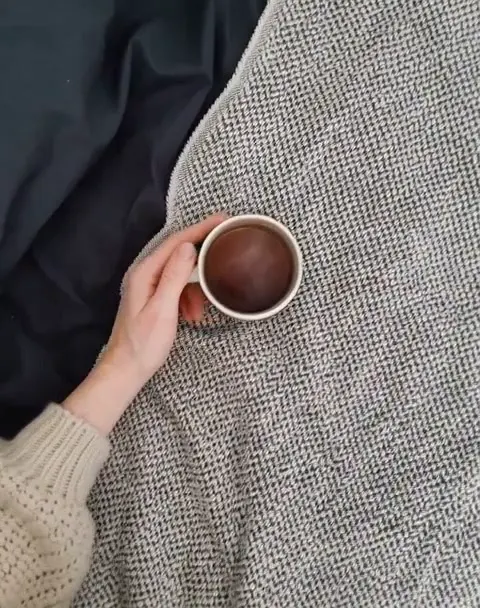
- Steam rises from the coffee, the hand slowly turns the cup, the camera gently pushes in
- The girl turns to look at the camera, her hair lifts in the wind, lanterns drift past in the background
- The camera tilts up from the street to reveal the whole city at night
- The product turns slowly on the table as a beam of light sweeps across from the left
Combine several images into one scene
To put a character, a background and a product into the same shot, use multi-image video: upload one to four reference images and describe how they interact. Aspect ratios are 16:9, 9:16 and 1:1.
Models: HeyGen (70 points at 720p and 150 at 1080p for 5 seconds; 1080p is vertical or landscape only), MiniMax H3 Max (90 points at 720p, 170 at 1080p), Seedance 2.0 Mini (60 at 480p, 130 at 720p) and, on paid plans, Seedance 2.5 (100 at 480p, 220 at 720p).
When the result is not what you expected
- Warped face: use an image with a clearer face, or set motion intensity to gentle.
- Barely any movement: name a specific action and camera direction instead of only adjectives.
- Too chaotic: ask for one main action per clip and save the rest for the next one.
- If a generation fails, the points are refunded automatically.
Making longer videos
A single clip is at most 10 seconds. For a story with several shots, use the AI Anime Drama studio: generate each shot, start each one from the last frame of the one before, then export them as one video. The novel-to-anime guide walks through the whole process.
See the finished coffee clip for a real example.
Frequently asked questions
- How many points does image to video cost?
- It depends on the model, resolution and length. The most common choice, MiniMax H3 Max Turbo at 720p, is 50 points for 5 seconds and 100 for 10 — the 88 points you get when you sign up cover a first try.
- Can I use my own photos?
- Yes, as long as you have the right to use them. Get consent from anyone else who appears in the photo, and avoid images of celebrities.
- What are the limits on the free plan?
- The free plan includes 480p and 720p. 1080p and Seedance 2.5 need a paid plan.
- How long does it take?
- Usually a few minutes, longer when the queue is busy. You can leave the page and find the clip in My Works when it is done.
Bring your first photo to life
Upload an image, pick a camera move and generate.